
More actions
| How To Fix Important Display Message Even After Transferring Touch IC | |
|---|---|
| Device | iPhone 12, iPhone 12 Pro, iPhone 12 Mini, iPhone 12 Pro Max, iPhone 13, iPhone 13 Pro, iPhone 13 Mini, iPhone 13 Pro Max, iPhone 14, iPhone 14 Pro, iPhone 14 Plus, iPhone 14 Pro Max, iPhone 15, iPhone 15 Pro, iPhone 15 Plus, iPhone 15 Pro Max, iPhone 16, iPhone 16 Pro, iPhone 16e, iPhone 16 Pro Max |
| Affects part(s) | Display |
| Needs equipment | JC Programmer |
| Difficulty | ◉◉◉◌ Hard |
| Type | Programming"Programming" is not in the list (Soldering, Teardown, Part replacement, Cleaning, Software, BGA, General) of allowed values for the "Repair Guide type" property. |
Problem Description
When performing a display replacement on iPhone models that require Touch IC transfer (e.g. iPhone 12-16 series), even after transferring the original touch IC from the old display to the new one, the “Unable to verify this iPhone has a genuine Apple display” message still shows up.
This usually occurs due to MTSN data mismatch — the new display doesn’t have the correct pairing data that tells the phone it’s the original display.
Symptoms
- “Important Display Message” still shows after successful touch IC transfer.
- Everything else (touch, brightness, Face ID) may work fine.
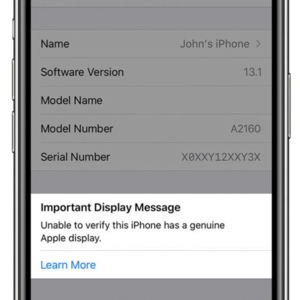
"Important Display Message"

Diagnostic Steps
- Confirm touch IC transfer was done properly (no bad solder joints, no missing pads).
- Connect phone to JC Programmer or equivalent tool and check if MTSN data on new display matches old display.
- If mismatch is found, message will continue to display until data is written correctly.
Repair Steps
Method 1: Pre-Transfer MTSN Data
- Read Old Display MTSN Data:
- Before transferring touch IC, connect old display to JC V1SE/V1SPRO programmer.
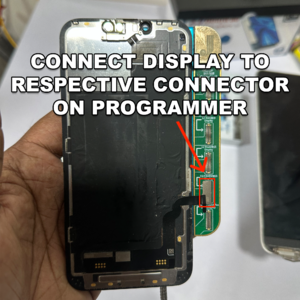
Connect Display to Appropriate Connector - Select Read MTSN or Read Display Data and save to PC/programmer.
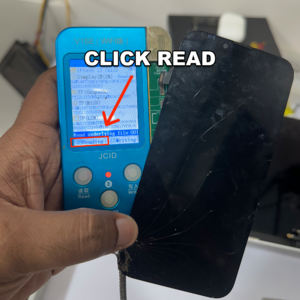
Read
- Before transferring touch IC, connect old display to JC V1SE/V1SPRO programmer.
- Write to New Display:
- Connect new display to programmer.
- Select Write MTSN or Write Display Data to program old display’s data to the new one.
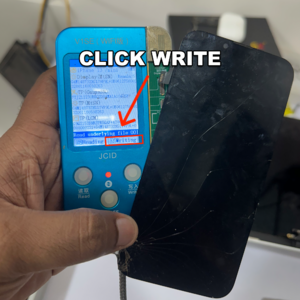
WRITE
- Transfer Touch IC:
- Once data is written, perform touch IC transfer normally.
- Install new display → message should be gone.


Method 2: Post-Transfer Fix (If Already Transferred Touch IC)
- Connect Phone to Programmer:
- After touch IC transfer, connect phone with new display installed to JC Programmer.
- Use Fix True Tone Option:
- On JC Programmer, select Fix True Tone.
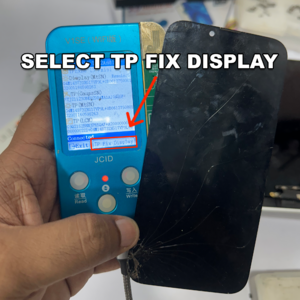
TP Fix - Select the appropriate display you are using, original or third party.
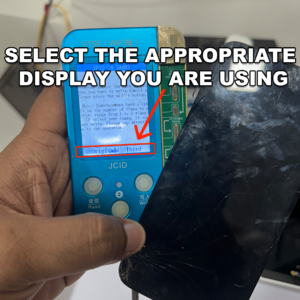
Select Display - This will rewrite correct MTSN data to the new display flex.
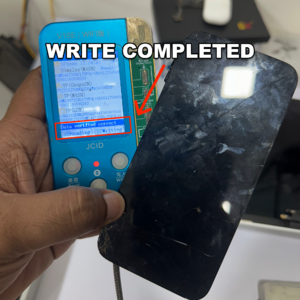
Verified correct data written to new display
- On JC Programmer, select Fix True Tone.
- Reboot Phone:
- Power cycle device → confirm that “Important Display Message” is cleared.


