Part Replacement"Part Replacement" is not in the list (Soldering, Teardown, Part replacement, Cleaning, Software, BGA, General) of allowed values for the "Repair Guide type" property.
Rear cam portrait mode not working due to replacement with different non-programmed sensor.
Note: This process applies to iPhone 12 Pro through iPhone 14 Pro Max (All the Pro Models).
Problem description
On iPhone 12 Pro through iPhone 14 Pro Max (Pro / Pro Max Series), the LiDAR sensor can stop working due to:
Drop or physical damage.
Water/moisture damage affecting the sensor or flex.
Technician error - failing to transfer the original paired LiDAR sensor when replacing the rear housing.
Symptoms
Measure app not working
Cannot use AR features relying on LiDAR
In camera app → Portrait mode fails (see fig. 1)
Sensor missing from diagnostics
Diagnostic Steps
Open the Measure app → confirm LiDAR cannot detect objects.
Open portrait mode on rear camera → Confirm it doesn't work.
Check if rear housing was replaced previously → ask customer .
If still non-functional → proceed to replacement + reprogramming.
Repair Steps
Disassembly: Remove display, disconnect battery. Remove rear camera module. Remove shield covering the LiDAR sensor → take out faulty sensor.
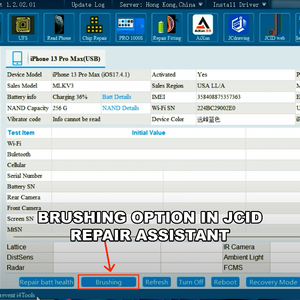
Brushing unbind & Backing up data: Reconnect display & battery. Connect iPhone to PC. Launch JC Repair Assistant → Read phone. Select Brushing.Brushing unbind in JCID Repair Assistant software.Import firmware → Flash device. If stuck in recovery mode → repeat flash in 3uTools. After brushing unbind and flash is complete, LiDAR sensor data is backed up to the cloud automatically.
Programming JCID LiDAR sensor: Connect JCID Programmable LiDAR sensor to programmer and write the correct data matching the phone.
Reassembly: Install the programmed LiDAR into the iPhone. Reinstall rear camera + shields. Reconnect all flexes and battery.
Verification: Boot iPhone. Test Portrait mode functions in camera. Open Measure app → confirm proper distance detection.