
More actions
| How to fix iPhone 13 to 16 pro max Face ID | |
|---|---|
| Device | iPhone 13, iPhone 13 Mini, iPhone 13 Pro, iPhone 13 Pro Max, iPhone 14, iPhone 14 Plus, iPhone 14 Pro, iPhone 14 Pro Max, iPhone 15, iPhone 15 Plus, iPhone 15 Pro, iPhone 15 Pro Max, iPhone 16, iPhone 16 Plus, iPhone 16 Pro, iPhone 16 Pro Max |
| Affects part(s) | TrueDepth Camera |
| Needs equipment | JC Programmer, JC Non Removal Face ID tag-on flex, PC |
| Difficulty | ◉◉◌◌ Medium |
| Type | |
Problem description
Face ID stops working because the TrueDepth sensor module is shorted.
This is most often caused by:
- Water damage
- Accidental damage while the device is open during other repairs (e.g., display replacement, battery replacement etc.)
Symptoms
- Settings → About → Parts & Service History → “Issue with Face ID detected”
- Unable to set up Face ID
- Face ID unavailable

Diagnostic Steps
- Attempt to set up Face ID in Settings → Face ID & Passcode.
- Confirm history of water damage or previous repair work with the customer.
- Inspect the TrueDepth module for visible damage or corrosion.
Repair Steps
- Open the iPhone and disconnect/remove the TrueDepth camera module.
- Power on the phone without the module connected and connect it to a PC.
- Open JC Repair Assistant on the PC and connect a JC V1S Pro or V1SE programmer. [You will need 13-16 Series Face ID Activation / Read & Write Adaptor]
- Perform a cloud backup of the TrueDepth module data using JC software.
- Test TrueDepth module and confirm module fuses.
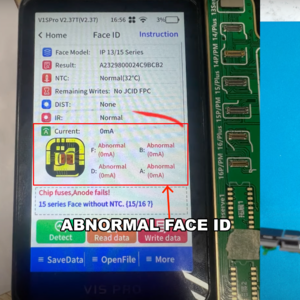
Face ID showing Fused - Click Activate and wait until the process completes.
- Connect the respective Tag-on flex cable to the JC programmer.
- Write the corresponding device Face ID data onto the flex from the backup.
- Verify that the flex shows the original TrueDepth data.
- Connect the Tag-on flex to the TrueDepth module and recheck in JC software/programmer: Should now show “NORMAL” instead of “FUSED”.
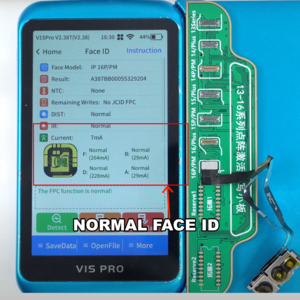
Face ID Normal - Fold the Tag-on flex according to your iPhone model (follow JC’s reference videos).
- Reinstall the TrueDepth module with the Tag-on flex attached.
- Power on the phone and verify that Face ID is fully functional.
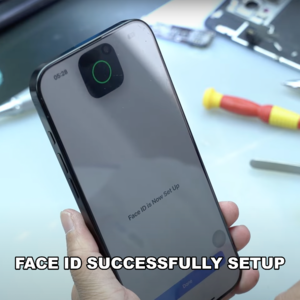
Face ID successfully setup


