
More actions
| MacBook NAND Replacement and Programming Guide | |
|---|---|
| Type | Soldering"Soldering" is not in the list (Component, Circuit, Troubleshooting/Diagnostics, Method, Idea/Concept) of allowed values for the "Explanatory Guide Type" property. |
| Device(s) | MacBook Pro A1990, MacBook Pro A2141 |
| Difficulty | ◉◉◉◉ Specialist |
MacBook storage upgrade or NAND failure requires replacement of onboard NAND flash chips. Since Apple SSD storage is directly soldered to the logic board, new NAND chips must be:
- Correctly programmed
- Properly mapped
- Installed in correct positions
- Restored via DFU after installation
Improper programming or incorrect NAND placement will result in:
- No boot
- Restore failure
- Incorrect storage detection
Requirements
- JC Programmer (with JCID Assistant software)
- Compatible blank NAND chips
- Hot air station
- Microscope
- Donor Mac (for DFU restore)
- USB-C cable
Important Notes Before Starting
- NAND positions are board-specific (e.g., U9200, U9100, etc.)
- Chips must be installed in the exact mapped positions
- Always mark chips after programming
- Storage size selection must match desired final capacity
Procedure
Step 1 – Connect Programmer
- Connect JC Programmer to PC
- Open JCID Assistant software
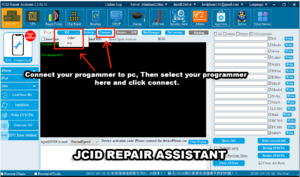

Step 2 – Select Mac Series
- From the left-side dropdown menu
- Select the Mac series you are programming for
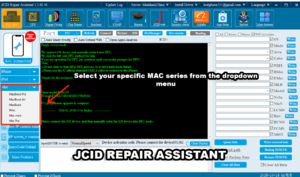

Step 3 – Select Specific Model
Example:
For this guide, select:
MacBook Pro 2019 – A2141
Always ensure:
- Model matches exactly
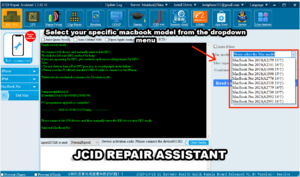

Step 4 – Select Storage Capacity
Choose the storage size you want to program:
- 256GB
- 512GB
- 1TB
- 2TB (if supported)
Example:
- If upgrading to 1TB, select 1TB
- If original device was 512GB, select 512GB
Capacity must match chip configuration.

Step 5 – Program NAND Chips
- Insert NAND chip into programmer
- Click Write JC Data
- Wait for programming to complete
- Remove chip
⚠️ After programming each chip:
- Mark it clearly (e.g., U9200, U9100, etc.)
- Use a marker or fine-tip Sharpie
- This prevents position mix-up during soldering
Repeat process for all NAND chips.

Step 6 – Install NAND Chips
- Remove old NAND chips from logic board
- Clean pads thoroughly
- Reball new NAND chips (if required)
- Install each chip in correct labeled position
- Inspect solder joints under microscope
⚠️ Incorrect placement = no boot or restore failure.
Step 7 – DFU Restore
After soldering:
- Use a second working Mac
- Connect target Mac via USB-C
- Enter DFU mode
- Open Apple Configurator
- Perform Restore
⚠️ Restore is required to initialize new storage.
Step 8 – Verification
After restore completes:
- Boot MacBook
- Complete setup
- Go to:
- About This Mac → Storage
- Confirm upgraded storage capacity
Example:
- 512GB → now shows 1TB
Expected Result
- Mac boots normally
- Storage capacity reflects selected size
- System stable
- No SSD-related errors